Do you want to play Minecraft Java on Android mobile?
Good news — it is possible. In this step-by-step guide, you’ll learn how to install and run Minecraft Java Edition on Android using the best and most stable launcher available.
Minecraft Java Edition is officially designed for PC, but with the help of a powerful Android launcher, you can enjoy the full Java experience on your phone — including mods, shaders, and resource packs.
In this guide, I’ll show you how to play Minecraft Java Edition on Android phone using Zalith Launcher, one of the best Minecraft Java launchers for Android.
What Is Zalith Launcher?
Zalith Launcher is a powerful Minecraft Java Edition launcher for Android that allows you to run Minecraft Java on mobile devices. It supports:
– Multiple Minecraft Java versions
– Forge, Fabric and other mod loaders
– Mods, shaders, and resource packs
– Smooth performance on most Android devices
Because of its stability, performance, and ease of use, Zalith Launcher is one of the best options to install and play Minecraft Java Edition on Android.
Step 1: Download Zalith Launcher for Android
To get started, download and install Zalith Launcher on your Android phone.
Make sure you download the correct version for your phone. If your phone is 32-bit, download the 32-bit version of Zalith Launcher. If your phone is 64-bit, download the 64-bit version of the app.
Zalith Launcher Official Site 🔗
After installing, open the app.
On first launch, Zalith Launcher will need to download the required game files.
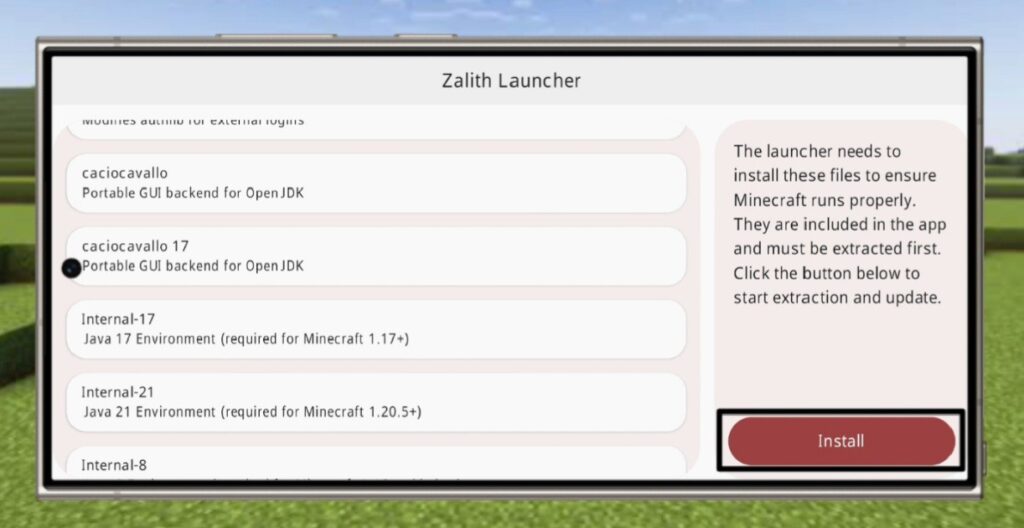
Tap on Install to let the setup complete.
Step 2: Add a Minecraft Account (Offline)
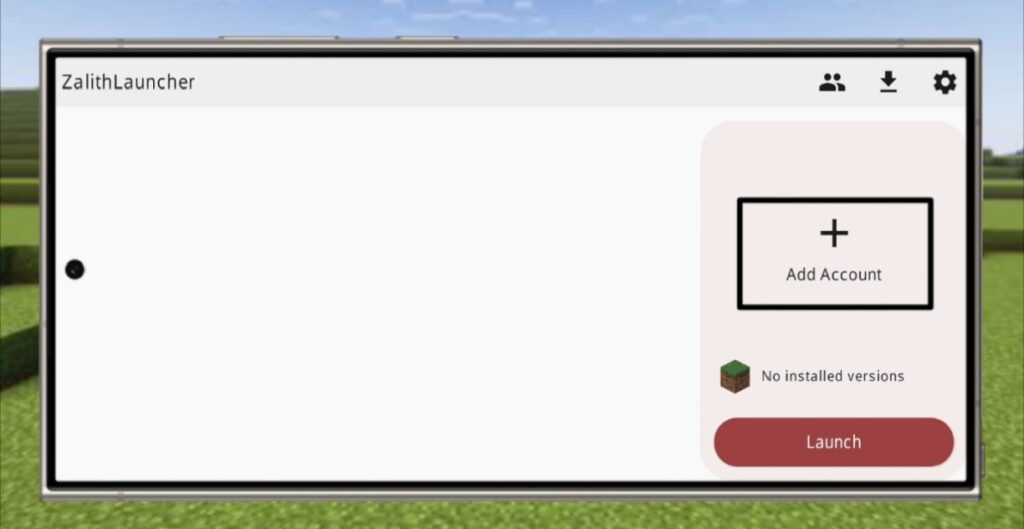
Now, create an offline Minecraft account.
- Tap Add Account
- Select Offline
- Enter your desired username
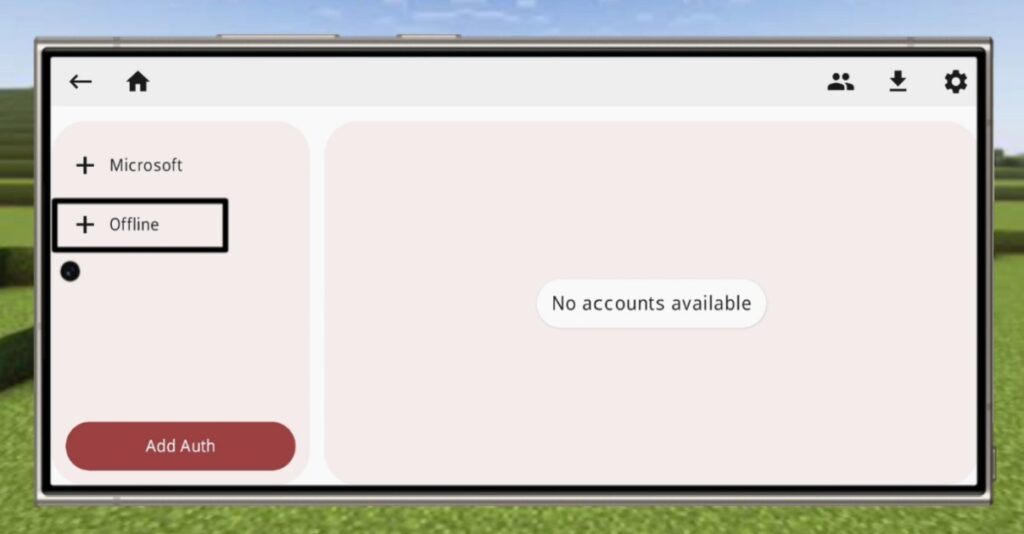
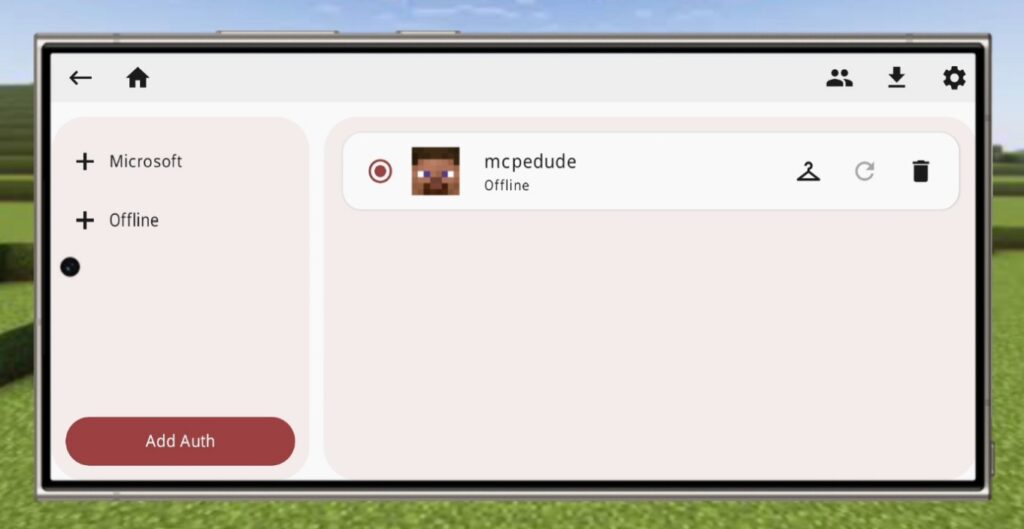
This offline account allows you to play Minecraft Java Edition without logging in.
Step 3: Download Minecraft Java Edition Version
Currently there are no Minecraft versions installed.
Tap Install New to download a Minecraft Java version.
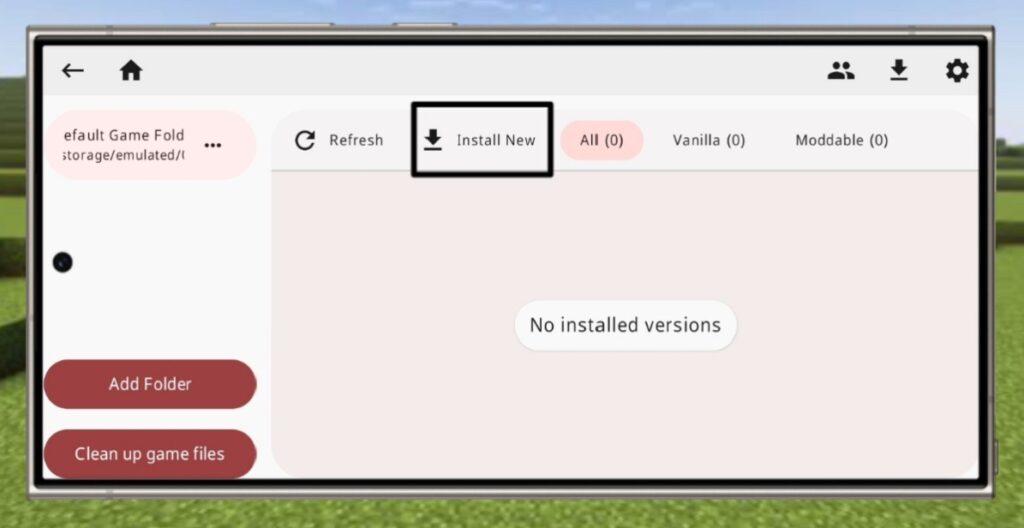
You can download any version from this list, click on the version and tap on mod loader like fabric or forge to start downloading.
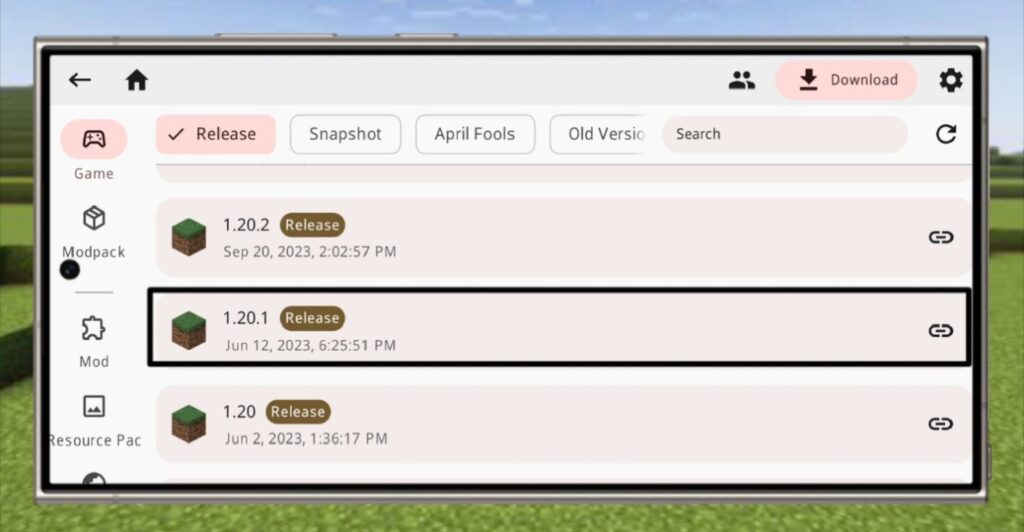
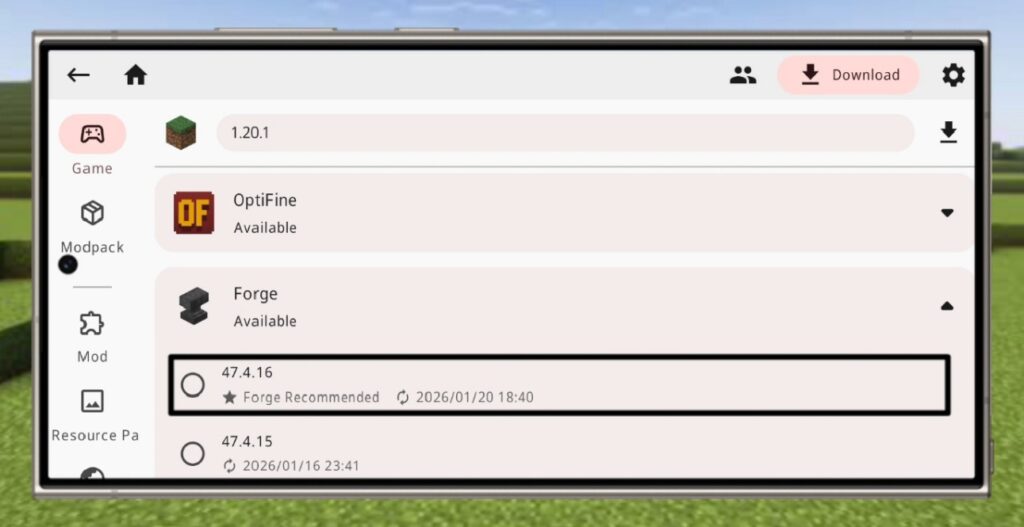
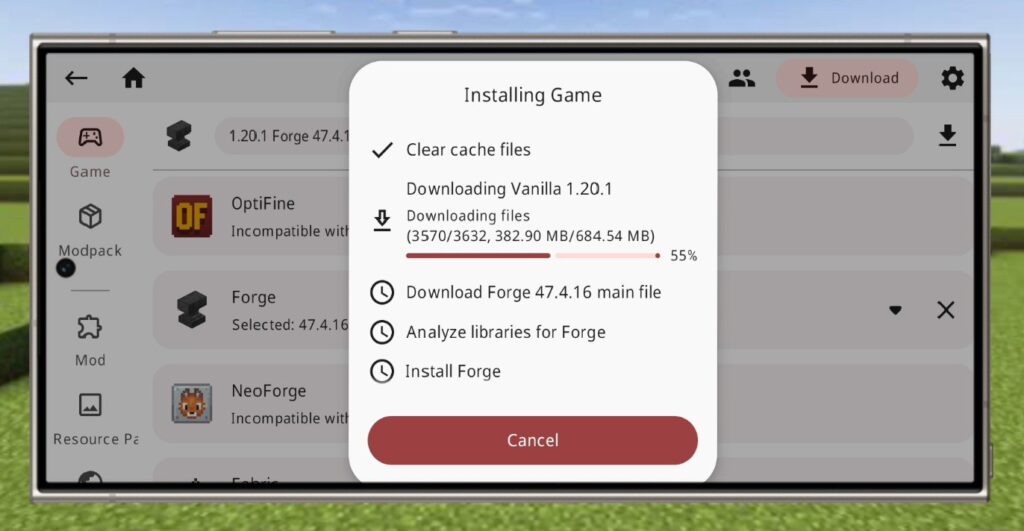
For this tutorial, I used Minecraft Java Edition 1.20.1 with Forge.
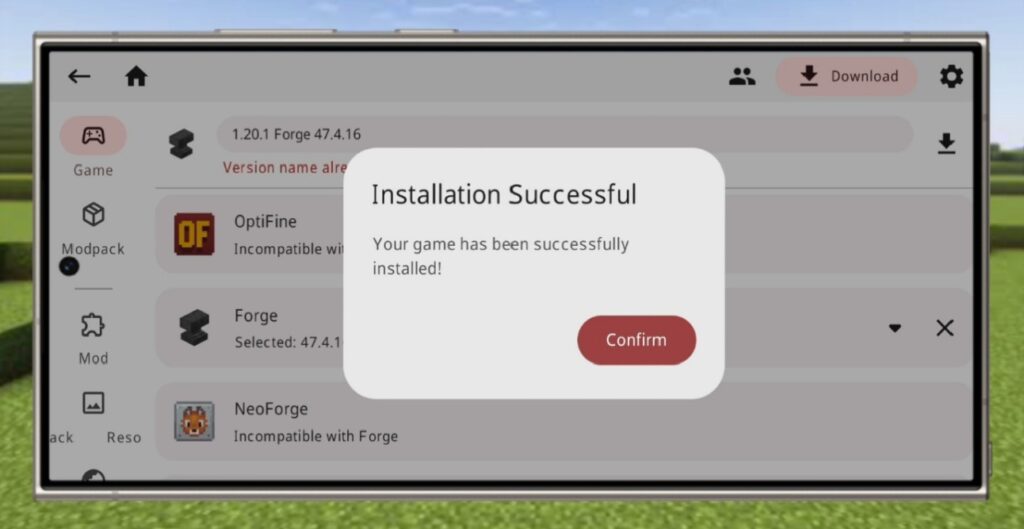
Step 4: Launch Minecraft Java Edition on Android
Once the download is complete, tap the Launch button.
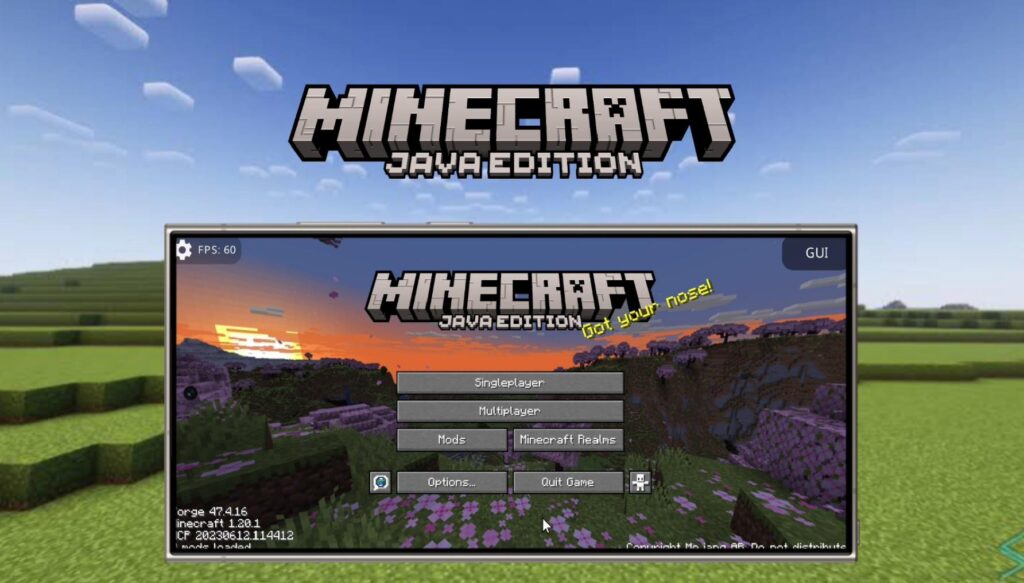
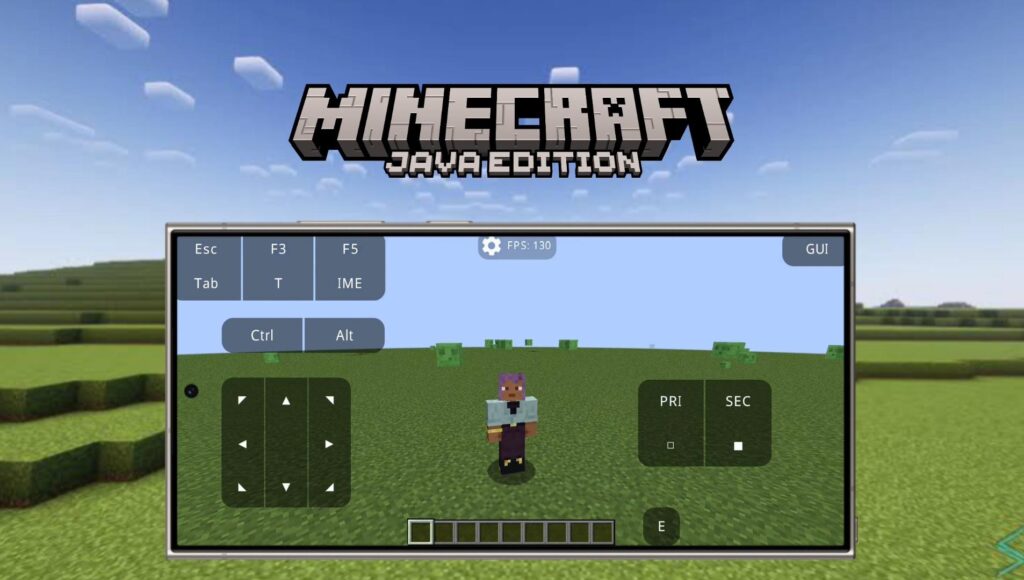
Minecraft Java Edition will now run successfully on your Android device.
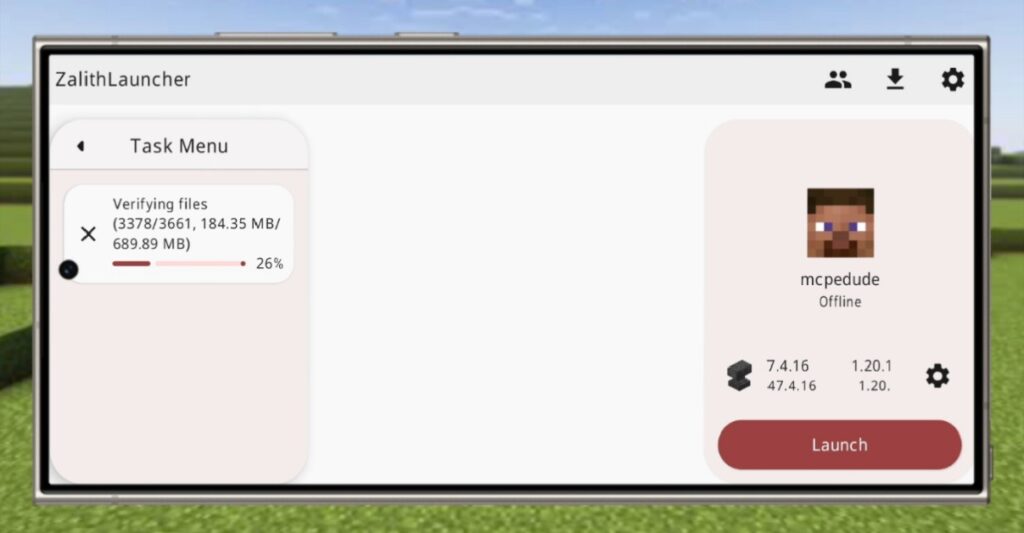
How to Install Mods in Zalith Launcher?
Zalith Launcher supports Minecraft Java mods easily.
Watch the complete video tutorial here 🎥
How to install mods in Zalith Launcher 🔗
Why Zalith Launcher Is the Best Minecraft Java Launcher for Android
There are many Minecraft Java launchers for Android, but Zalith Launcher stands out because of its performance and reliability.
You can download and play different Minecraft versions smoothly. It also supports mods, resource packs, shaders etc.
During testing, I installed the Sodium mod and achieved 120+ FPS, making the gameplay extremely smooth even on mobile.
Final Thoughts
If you’re searching for the best way to play Minecraft Java Edition on Android, Zalith Launcher is one of the best and most reliable solutions available.
It’s easy to set up and delivers excellent performance. Whether you’re a beginner or an advanced Minecraft player, this method lets you enjoy the full Minecraft Java experience on Android.